How To Share Spotify Playlist With Someone (Friends & Collaborators) – A Detailed Guide
Sharing the joy of music on official Spotify is simple, but there are two distinct ways to share your playlist: Sharing the link (for followers to listen) and making it collaborative (for friends to add songs and curate together).
This comprehensive guide will walk you through both methods, ensuring you can share your favorite tunes or let your friends join the fun by adding songs to the same playlist, allowing them to truly participate in the listening experience. If you decide you need a break from the service, you can also learn how to cancel your Spotify Premium subscription.
Method 1: Sharing a Playlist Link (Listening and Following Only)
This is the fastest, simplest way to let someone access and listen to your playlist. They can follow the playlist to get updates, but they cannot add or delete tracks themselves.
Step 1: Locate or Create Your Playlist
- Open the official Spotify app on your device.
- Head over to your Library found in the bottom right-hand corner.
- You can either choose one of your existing customized playlists (for example, a playlist titled “Bigger Big Tunes”) or you can click on the plus icon at the top to create a new playlist from scratch.
Sharing playlists is a core feature of Spotify for collaborative listening.
Learn more about controlling your Spotify account safely in this guide on how to keep Spotify account safe.
Step 2: Access the Share Menu
- Once you have opened the desired playlist, look for the three dots (•••) usually located right under the playlist title and cover art. Click on these dots.
- In the menu that appears, scroll down until you find the Share option and select it.
Sometimes shared playlists don’t appear due to app glitches or connection issues.
Follow this troubleshooting tutorial on why Spotify is glitching and how to fix it.
Step 3: Choose Your Sharing Option
Official Spotify will present you with several different options to share your playlist link:
- Copy Link: This is the most universal and reliable method. Copy the link to your playlist and then send it manually via email, text messages, or a messenger group (like Facebook Messenger or WhatsApp).
- Direct Share Options: You can directly share it through various platforms such as WhatsApp Stories, Messages, TikTok, Snapchat, Twitter, and Facebook. Go ahead and select your preferred option.
Restarting the Spotify app can help ensure playlists sync correctly with friends.
Here’s a step-by-step guide on how to restart Spotify properly.
The recipient simply taps on the shared link, which will open the playlist within their official Spotify app, allowing them to listen to it and follow it for future updates. This method is the standard way to broadcast your playlists, and if you ever encounter issues like an empty playlist not showing up, you can check out our guide on how to fix empty playlists on Spotify
Method 2: Creating and Inviting Collaborators to a Joint Playlist
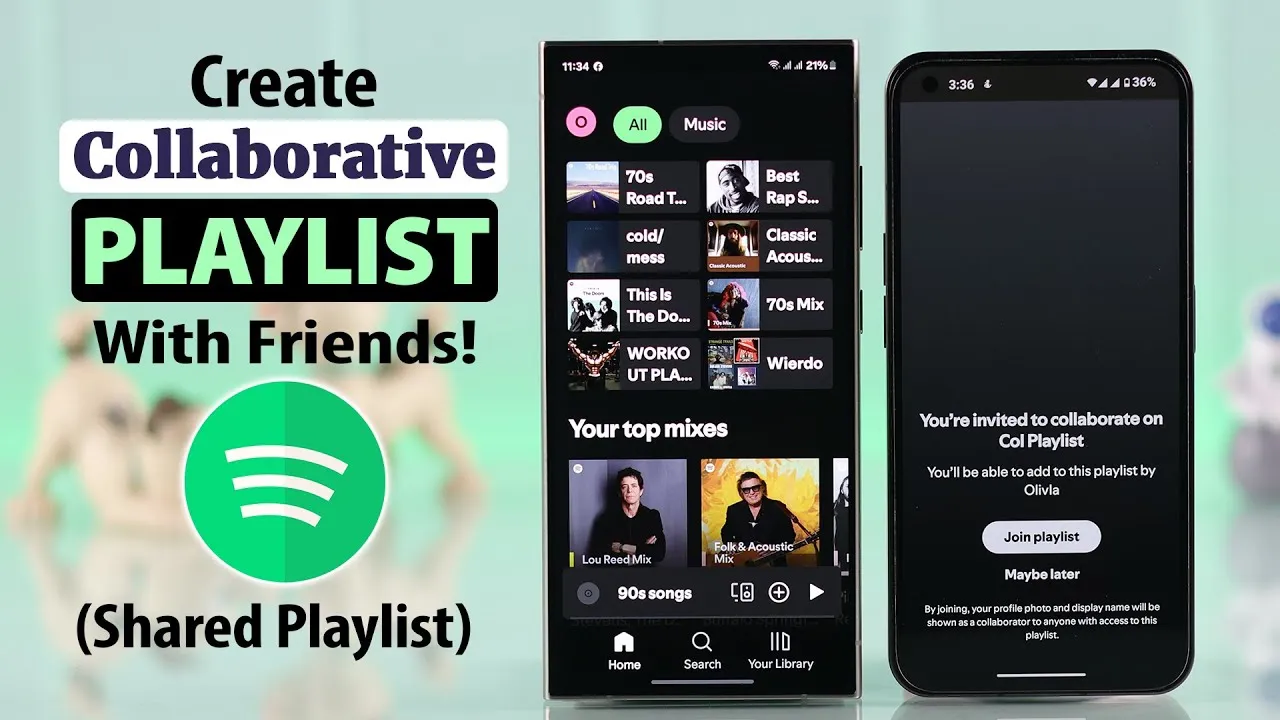
Do you want to create a collaborative Spotify playlist where you and all your friends can add songs and share the fun? This feature allows your collaborators to edit the playlist, add songs, and rearrange tracks.
Knowing Spotify tips and tricks can improve your sharing and collaborative experience.
Check this article on Spotify tips and tricks for seamless playlist sharing.
Step 1: Enable Collaborative Mode
- Go back to your chosen playlist from your Library.
- Click on the three dots (•••) located under the title.
- In the menu, you need to turn this into a joint playlist. Select Collaborative playlist or Invite collaborators (the wording may vary slightly).
This action instantly turns the playlist into a collaborative one, indicated by a new icon (often a circle with a person and a plus sign) appearing near the cover art or in the sidebar. This means your friend is then going to be able to add songs as well.
This feature is available across all platform versions, whether you are using Spotify for PC or a mobile device where you might have followed our guide on Spotify for iOS.
Step 2: Invite People to the Playlist
Once the playlist is collaborative, you can invite contributors. Official Spotify allows you to add up to 1,000 people to edit the playlist.
- Click the three dots (•••) again and select Invite collaborators (or tap the dedicated human icon next to the playlist title).
- All the invitation options will appear. You can either use the direct sharing options or, most simply, Copy the link.
- Paste the link on your mail, your messenger group, or wherever you wish to send the invitation.
Step 3: Joining the Collaborative Playlist
The receiver simply taps on the invitation link they received, and a prompt will appear asking them to Join the Playlist. Once they click this, they become a collaborator.
Playlist sharing works best on supported versions of Spotify for full functionality.
Download the official app from the Spotify Premium APK page.
All your collaborators can now edit this playlist, adding whatever songs they want, and those songs will instantly appear on your version of the playlist as well.
A Word of Caution on Sharing: The only current downside is that official Spotify does not allow you to pick and choose who adds songs once the link is shared. If you post the link publicly (e.g., on Facebook or Twitter), anyone who finds that link can join and add songs. Be careful with who you actually share the link with.
Managing Collaborators (Leaving or Removing)
- If a collaborator decides they want to remove themselves from the editing access, they can simply leave the playlist from their own official Spotify account.
- As the creator, if you tap on the three dots (•••), you can manage the list of contributors and Remove a specific person as a collaborator if necessary.
This collaborative feature helps everyone share the fun and works perfectly across all versions of the app, including the Spotify APK for Android users.

I’m martably passionate music enthusiast and researcher behind all the content you find here at spotifyapk.
As the site’s owner and publisher, my mission is simple: to provide clear, informative, and useful guides on the ever-evolving world of digital music platforms. Follow the journey and connect on Instagram: @martably! This site is dedicated to informational purposes, fueled purely by a love for music.