How to Use Spotify Connect With All Your Devices
Whether you’re setting the mood for a date night dinner, filling your home with background music, or watching your favorite podcast on the big screen, Spotify Connect makes it easy to control what’s playing on almost any device.
Spotify Connect works best when your app is updated and running smoothly across devices.
If you face connection drops, use this guide on why Spotify is glitching and how to fix it.
Instead of being stuck to one screen or relying only on Bluetooth, Spotify Connect lets you:
- Start a song on your phone and continue it on your TV
- Control your smart speaker from your laptop
- Sync playlists (including local files) across devices for seamless listening
This guide walks you through:
- What Spotify Connect is
- What you need to use it
- How to connect and control different types of devices
- How to sync local files across devices
- Troubleshooting tips if things don’t work first time
What Is Spotify Connect?
Spotify Connect is a feature that lets you use one device (like your phone) as a remote control for Spotify playing on another device (like a speaker, TV, console, or computer).
Sometimes Spotify Connect won’t appear due to playback or device-sync errors.
Follow these solutions from Spotify can’t play this right now fix.
Instead of streaming via Bluetooth from your phone:
- The music stream comes directly from the internet to the device (e.g., your speaker or TV)
- Your phone, tablet, or computer acts as a controller
- You can pause, skip, change volume, or switch to another device instantly
This is perfect for:
- Smart speakers and sound systems
- Smart TVs and streaming sticks
- Game consoles
- Headphones and smart displays
- Car systems (via Android Auto, Apple CarPlay, or built-in Spotify)
What You Need Before You Start
To use Spotify Connect smoothly, make sure you have:
2.1 A Spotify Account
- Free or Premium both work for Spotify Connect playback on most devices
- Premium is required if you want to:
- Download playlists for offline listening
- Sync and download local files to your phone (covered later)
2.2 Updated Spotify App
Use the latest version of Spotify on:
- Phone (iOS or Android)
- Tablet
- Computer (desktop app or web player in a browser)
2.3 Compatible Devices
Spotify Connect works with:
- Smart speakers (e.g., Sonos, Amazon Echo, Google Nest, many Wi-Fi speakers)
- Smart TVs and streaming devices (e.g., Android TV, some Samsung/LG TVs, Chromecast, Fire TV, etc.)
- Game consoles (e.g., PlayStation, Xbox – where supported)
- Many car systems and receivers
- Other devices that are “Spotify Connect” enabled
2.4 Same Network (Especially First Time)
For most setups and especially the first time you connect:
- Ensure all your devices are on the same Wi‑Fi network
This is crucial for:
- Initial discovery of new devices
- Syncing local files from computer to phone
- Restarting the app often resolves Spotify Connect not showing available devices.
- Here’s a quick tutorial on how to restart Spotify properly on any device.
Basic Spotify Connect: Control Any Device From Phone or Computer
The basic process is the same whether you’re on your phone, tablet, or computer.
Control From Your Phone or Tablet
- Open Spotify (latest version) on your phone or tablet.
- Start playing any song, podcast, or playlist.
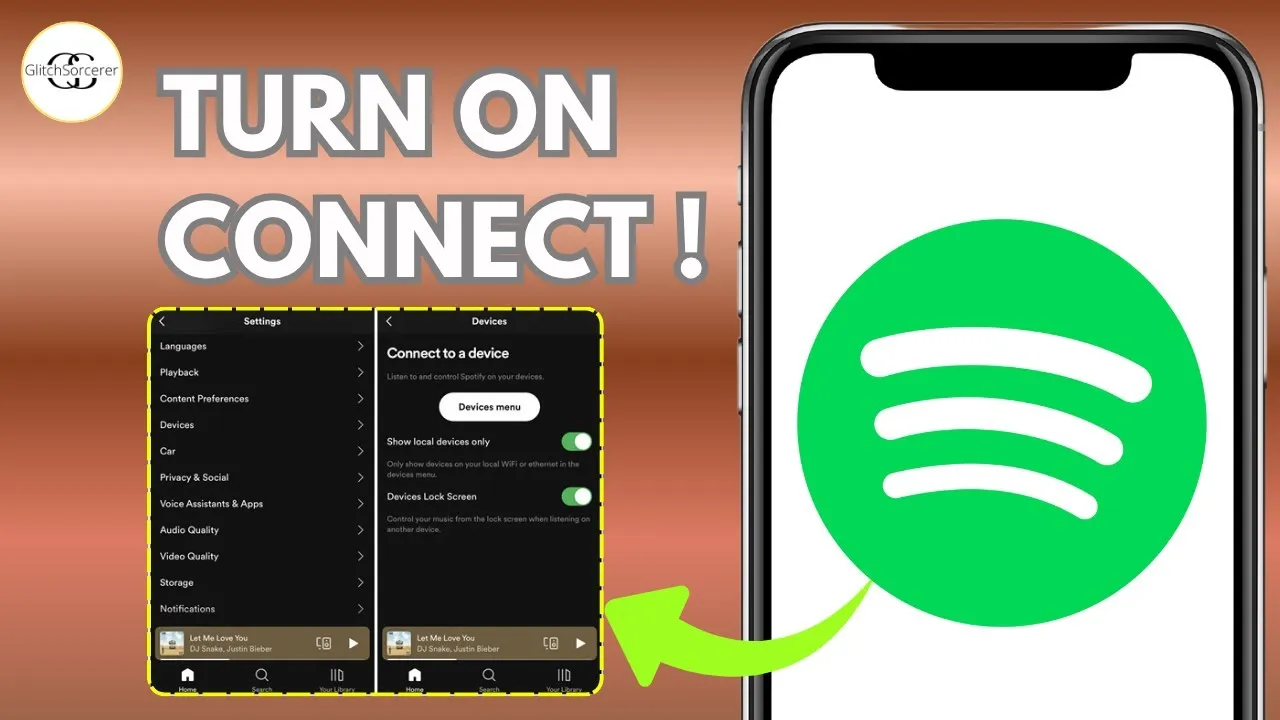
- Tap the “Device” / “Speaker” icon:
- On mobile, this usually appears at the bottom of the screen (it looks like a speaker with waves or a screen + speaker).
- You’ll see a list of available devices:
- Your phone
- Any smart speakers, TVs, consoles, or other Connect devices on the same network
- Tap the device you want to listen from.
Spotify will now switch playback to that device, and your phone becomes a remote control. You can:
- Pause, play, skip
- Adjust volume
- Change tracks or playlists
- Switch to another device at any time from the same menu
Control From the Desktop App or Web Player
- Open Spotify on your computer (desktop app or browser).
- Start playing something.
- Click the “Connect to a device” / speaker icon at the bottom right.
- Select the device you want to play from (e.g., a TV, speaker, console, or even your phone).
You’ll now be controlling playback on that device from your computer.
Using Spotify Connect Around Your Home and On the Go
Let’s break down some common device types and how they usually work with Spotify Connect.
Smart Speakers and Displays
Examples: Sonos, Amazon Echo, Google Nest, many Wi‑Fi speakers and soundbars.
- Make sure your speaker is set up and connected to the same Wi‑Fi as your phone/computer.
- Open Spotify and start playing something.
- Tap the speaker icon and choose the speaker from the list.
Once connected, you can control playback from:
- Your phone or tablet
- Your computer
- Often from the speaker’s own app (depending on brand)
Smart TVs and Streaming Devices
Examples: Android TV, Chromecast, Fire TV, some Samsung/LG TVs, Roku (where supported).
- Ensure your TV or streaming device has:
- The Spotify app installed and logged in, or
- Built‑in Spotify Connect support.
- Play something in Spotify on your phone or computer.
- Tap the speaker icon and choose your TV/streaming device.
This is ideal for:
- Watching video podcasts on the big screen
- Playing music through your TV’s speakers or connected sound system
Game Consoles
Examples: PlayStation, Xbox (where supported and with the Spotify app available).
- Install and open the Spotify app on your console and log in.
- Make sure your console and phone/computer are on the same network.
- On your phone/computer, open Spotify, start playing something.
- Tap the Connect / speaker icon and select your console.
You can now control your console’s Spotify playback entirely from your phone or PC.
Headphones and Other Devices
Many Wi‑Fi headphones, smart displays, and audio systems support Spotify Connect.
- Once the device is on and on the same network, it should appear in your Connect list.
- Select it just like any speaker or TV.
Spotify In the Car
Depending on your car, you might have:
- Android Auto
- Apple CarPlay
- A built‑in Spotify app
- Bluetooth audio only
If your car has Spotify or a compatible system:
- Connect your phone via cable or Bluetooth if required.
- Open Spotify on your phone.
- Use the car’s screen controls, or:
- Use the Connect / speaker icon on your phone to pick the car system as the device.
You can then control playback from the car’s controls or your phone, depending on the setup.
Using Spotify Connect With Local Files Across Devices
Spotify doesn’t just play music from its own catalog — you can also add local files (songs stored on your computer) and sync them to your phone. Once they’re synced, they behave almost like normal Spotify tracks and can be controlled with Spotify Connect.
Note: Syncing local files to your phone/tablet and downloading them for offline listening usually requires Spotify Premium.
Set Up Local Files on Your Computer
- On your desktop app, click your profile in the top right and go to Settings.
- Scroll to Local Files.
- Enable “Show Local Files”.
- Under “Show songs from”, click Add a source.
- Select the folder where your music files are stored (e.g.,
Music,Downloads, or another folder). - Make sure the toggle for that folder is on.
Now:
- Go to Your Library → Local Files in the left sidebar.
- You should see the songs Spotify found on your computer.
Create a Playlist for Local Files
To sync these songs to your phone:
- In Spotify on your computer, go to Your Library → Local Files.
- Create a new playlist (it can be a playlist you actually use or just a “Local Files Sync” playlist).
- Add the local tracks you want to sync into that playlist.
For example, if you have a rare song that isn’t on streaming platforms, add it to this playlist.
Sync the Playlist to Your Phone
- Make sure your phone and computer are:
- Logged into the same Spotify account
- Connected to the same Wi‑Fi network
- On your phone:
- Close the Spotify app if it’s already open, then reopen it (this helps it refresh).
- Navigate to the playlist that contains your local files.
- Tap the Download toggle/button to download the playlist to your phone.
If everything is set correctly:
- The local files from your computer should start downloading to your phone,
- They will no longer appear as “unavailable”/greyed out,
- Once downloaded, you can play them like any normal track on your phone.
From there, you can use Spotify Connect to:
- Control playback on your phone
- Or, if the same tracks exist on another device, control them there too
Troubleshooting Local File Sync and Spotify Connect
Sometimes syncing local files or connecting devices can be a bit finicky. Here are methods that often fix issues.
If Local Files Won’t Sync to Your Phone
Try these steps in order:
- Check Wi‑Fi network
- Confirm both your computer and phone are on the same Wi‑Fi.
- Restart Spotify on both devices
- Close the Spotify app fully on your phone and reopen it.
- Close the Spotify desktop app on your computer and reopen it.
- Then, on your phone, go to the playlist with local files and tap Download again.
- If songs show as “unavailable” or stay greyed out
- Make sure:
- “Show Local Files” is enabled on your computer
- The local files still exist in the folder you selected
- Try toggling your phone’s Wi‑Fi off and back on, then reopen Spotify and the playlist.
- Make sure:
- Connect your phone via USB to your computer
- Keep both on the same Wi‑Fi network.
- Plug your phone into your computer with a USB cable.
- With Spotify open on both devices, go back to the local‑file playlist on your phone and hit Download again.
- This can help Spotify recognize and transfer the track more reliably.
- Keep both devices awake and online
- Don’t let your computer or phone go to sleep during syncing.
If you’ve done all of the above, in most cases the tracks will eventually show as available and finish downloading to your phone.
If a Device Doesn’t Show Up in Spotify Connect
If a speaker, TV, or other device isn’t appearing:
- Check the basics
- Is the device powered on?
- Is it connected to the same Wi‑Fi network?
- Is the Spotify app installed and logged in where required?
- Restart devices and apps
- Restart your speaker/TV/console.
- Close and reopen the Spotify app on your phone or computer.
- Update software
- Update Spotify on your phone/computer.
- Check for firmware/software updates on your speaker/TV/console.
- Check account
- Make sure you’re logged into the same Spotify account on all devices.
Once fixed, the device should appear in the Connect / speaker icon list.
Spotify Connect Realtime Review
Once you’re set up, Spotify Connect becomes a natural part of how you listen:
- Start a date night playlist on your phone and send it to your living room speakers
- Watch a video podcast on your TV while controlling volume and playback from your phone
- Sync rare local tracks from your computer to your phone and enjoy them anywhere
- Control music across rooms, devices, and situations without plugging and unplugging cables
To get the most out of Spotify Connect, understanding the core features is important.
Check this beginner-friendly guide on how to use Spotify step by step.

I’m martably passionate music enthusiast and researcher behind all the content you find here at spotifyapk.
As the site’s owner and publisher, my mission is simple: to provide clear, informative, and useful guides on the ever-evolving world of digital music platforms. Follow the journey and connect on Instagram: @martably! This site is dedicated to informational purposes, fueled purely by a love for music.