How to Play Spotify free on Amazon Alexa
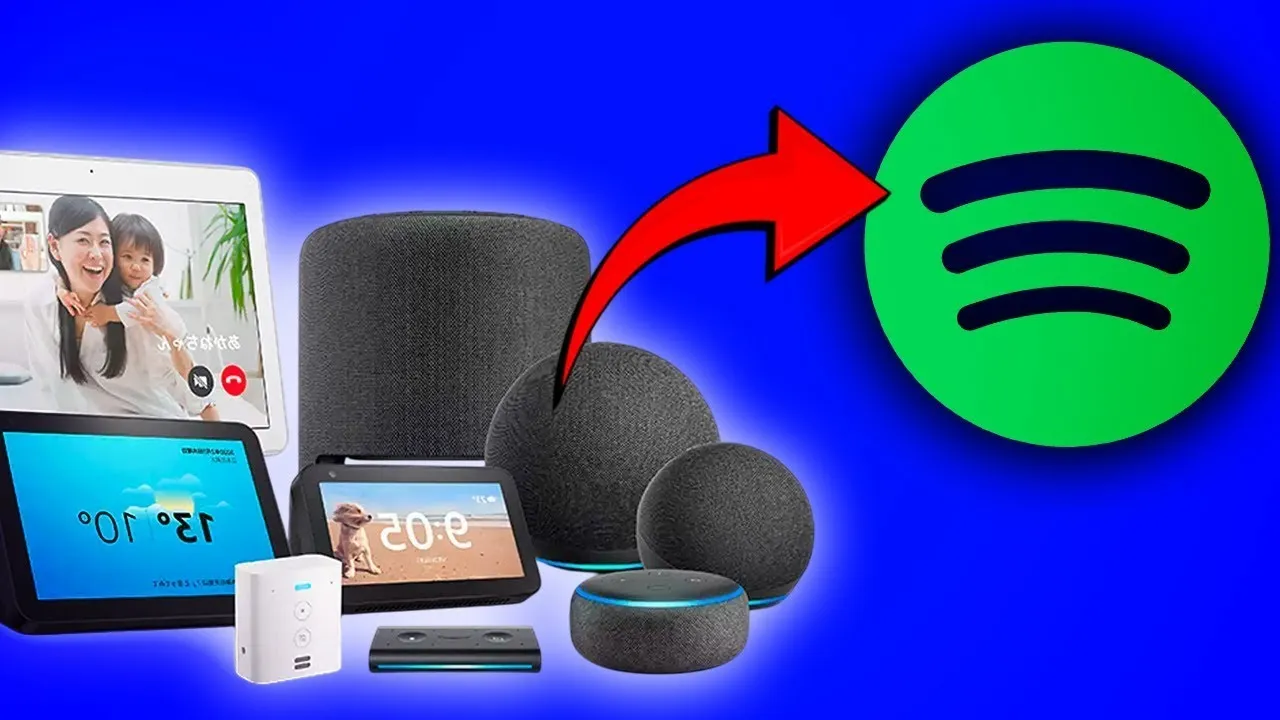
Do you want to enjoy your favorite music and podcasts from official Spotify on your Amazon Alexa device without paying for a premium subscription? Linking your accounts is a quick and seamless process that allows you to use your Echo Dot as a powerful wireless speaker, whether you are using an iPhone or an Android device.
In this guide, we will walk you through the installation, the linking process, and how to set official Spotify as your default player so you can start listening with simple voice commands.
Phase 1: Preparation and App Installation
Before you can control your music with your voice, you need to ensure both apps are ready on your smartphone.
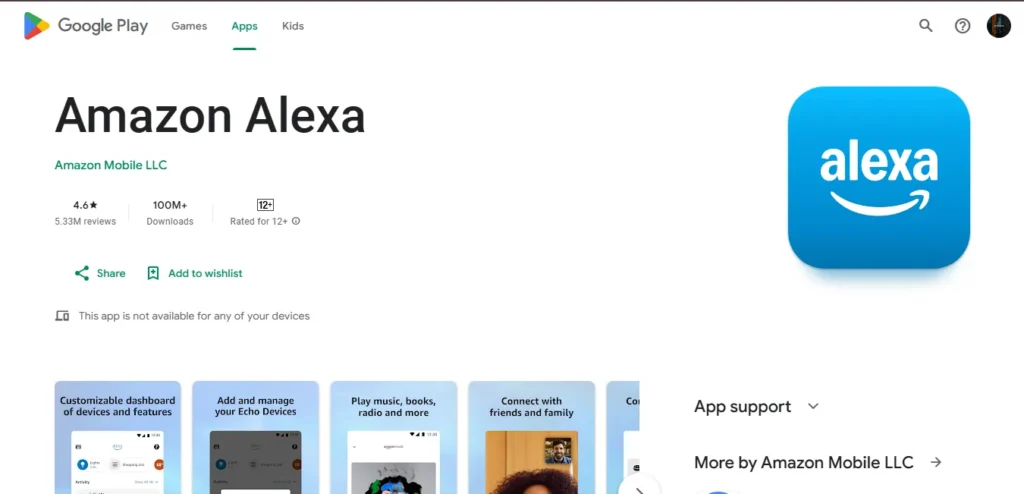
- Download Amazon Alexa: Go to the Google Play Store or Apple App Store, search for “Amazon Alexa,” and install it.
- Sign In: Open the Alexa app and log in using your Amazon account credentials.
- Spotify Readiness: Ensure you already have the official Spotify app installed and that you are logged into your account. If you need the app, you can find help in our guides for Spotify for iOS or the Spotify APK.
Phase 2: Linking Spotify to your Alexa Device
There are two primary ways to link your accounts: through the Music Settings or through Skills & Games.
Method A: Via Music & Podcast Settings (Recommended)
- Open the Amazon Alexa app.
- Tap on the More tab (bottom right) and select Settings.
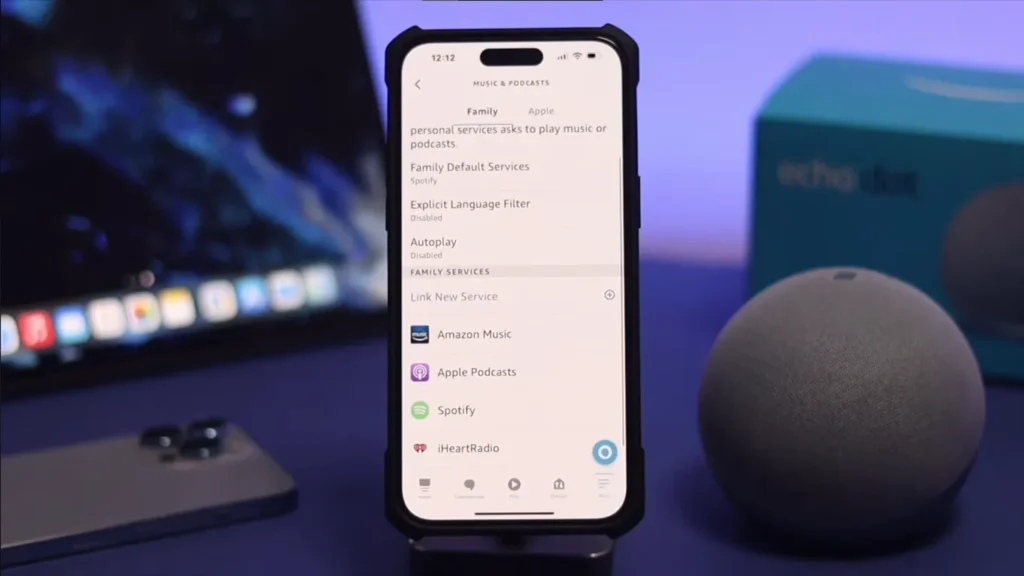
- Scroll down to the Alexa Preferences section and tap Music & Podcasts.
- If you don’t see Spotify listed, tap Link New Service.
- Select Spotify and tap Enable to Use.
- A page will open asking you to link your official Spotify account to Alexa. Tap Agree to the terms and conditions.
Method B: Via Skills & Games
- In the Alexa app, tap More and select Skills & Games.
- Search for Spotify in the search bar.
- Tap Enable to Use. You may be prompted to enter your official Spotify email and password to verify the connection.
Phase 3: Setting Spotify as the Default Music Player
making spotify as a default music player
byu/Leggo0fmyEggo inspotify
By default, Alexa often uses Amazon Music. If you want to say “Alexa, play music” without adding “on Spotify” every time, you must change your default settings.
- Go to Settings > Music & Podcasts in the Alexa app.
- Tap on Default Services.
- Under the Music, Artist/Genre Stations, and Podcasts sections, tap Change.
- Select Spotify for each category.
Now, whenever you ask Alexa for audio, it will automatically pull from your official Spotify library.
Phase 4: Voice Commands and Remote Control
Once linked, you can control your Echo Dot in two ways:
1. Using Your Voice
Simply wake your device and give a command. Because you’ve set it as the default, you can be specific:
- “Alexa, play [Song Name].”
- “Alexa, play my [Playlist Name] playlist.” (e.g., “Alexa, play Discover Weekly”).
- “Alexa, play [Podcast Name].”
2. Using the Spotify App (Spotify Connect)
You can use your phone as a remote control for your Alexa speaker:
- Open the official Spotify app on your phone.
- Play any song.
- Tap the Devices icon (the small speaker/screen icon) at the bottom of the player.
- Select your Echo Dot or Alexa device from the list. Your music will now switch from your phone to the Alexa speaker.

I’m martably passionate music enthusiast and researcher behind all the content you find here at spotifyapk.
As the site’s owner and publisher, my mission is simple: to provide clear, informative, and useful guides on the ever-evolving world of digital music platforms. Follow the journey and connect on Instagram: @martably! This site is dedicated to informational purposes, fueled purely by a love for music.