How to Keep Your Spotify Account Safe 2025/26 Guide
Spotify unautherized access are more common than most people realize. Sometimes it starts with small things—random playlists you didn’t make, strange songs in your “Recently Played.” In worse cases, someone changes your email and password, takes over your subscription, or even makes it hard to remove your payment details.
This guide walks you step‑by‑step through:
- How Spotify accounts end up under someone else’s control
- How to recover your account if it’s compromised
- How to lock down your Spotify and keep it private and secure
Why You Need to Protect Your Spotify Account
While a music streaming service might seem like a low-risk target, a compromised Spotify account can lead to significant privacy and security issues. Hackers value these accounts not just for the music, but as a gateway to your broader digital life. When your account is breached, it becomes a tool for fraud and a starting point for more serious cyberattacks.
A compromised account is often used for:
- Unauthorized Premium Access: Strangers may hijack your subscription to enjoy ad-free music and offline downloads at your expense.
- The Underground Market: Your login credentials can be sold or traded on dark web forums to individuals looking for cheap, stolen accounts.
- Artificial Stream Manipulation: Hackers use stolen accounts as “bots” to play specific songs on repeat, unfairly boosting an artist’s royalties or playlist rankings.
- Credential Stuffing Attacks: This is the biggest risk; hackers will test your Spotify password on your email, banking, and social media accounts to see if you’ve reused the same credentials elsewhere.
Common Spotify security risks
The most frequent causes of Spotify account takeovers are:
- Password reuse from other data breaches
- Phishing emails or fake “Spotify support” messages
- Malicious or unofficial Spotify apps
- Infected devices and unsafe networks
The rest of this guide will show you how to protect yourself from each of these.
Common Ways Spotify Accounts Get Compromised
Spotify Account Security is not Secure.
byu/Kingsonne inspotify
Most Spotify account takeovers don’t happen because of a direct security flaw within Spotify itself. Instead, they are usually the result of a “chain reaction” caused by poor password hygiene across other websites. If you use the same email and password for multiple accounts, a single security breach on a small, unrelated website can create a domino effect that leaves your most important profiles vulnerable.
The Lifecycle of an Account Takeover:
- The Initial Breach: A website where you previously used your email and password suffers a data leak.
- Data Trafficking: Those stolen credentials are sold or published on underground forums.
- The Attack: Cybercriminals use automated tools to “stuff” those credentials into major services like Spotify, Netflix, and Gmail to see which ones work.
- The Result: One weak website exposes a password that unlocks your entire online life.
How to Check Your Risk and Take Action:
To protect yourself, you need to know if your data has already been leaked. Follow these steps to secure your digital footprint:
Phishing emails, texts, and fake “Spotify support”
Attackers often send messages that look like they’re from Spotify:
- “Your Spotify account will be closed – confirm your details.”
- “Payment failed – update your card information.”
- “Unusual login detected – click here to secure your account.”
Red flags:
- Strange sender address (e.g., support@spotlfy-security.com)
- Spelling mistakes, urgency, threats
- Links that don’t lead to open.spotify.com or spotify.com
Rule of thumb:
If you get an alarming email or DM, don’t click the link. Instead, manually open the Spotify app or go to spotify.com in your browser and check from there.
Unofficial applications and “modded” Spotify APKs
Anything promising “free Spotify Premium” or similar shortcuts is a huge risk:
- Modified apps can log your username and password.
- Websites offering modified apps often bundle malware.
- Your account can be banned for violating Spotify’s terms.
Always:
- Download Spotify only from the official website or your device’s official app store.
- Avoid browser extensions or apps that ask for your Spotify login directly.
How to Tell If Your Spotify Account Has Been Compromised
Sometimes, a security breach dosent happens suddenly. see common things that usually happen
Watch for these common warning signs:
- Unfamiliar Activity in Your Library: You notice new playlists you didn’t create, or your “Recently Played” and “Liked Songs” are filled with artists, albums, or podcasts you’ve never touched.
- Playback Anomalies: Music suddenly starts playing on another device, or your current session is frequently interrupted by someone else controlling the queue.
- Account Setting Changes: The language within the app changes unexpectedly, or your profile details (like your email or password) have been modified without your input.
- Security Notifications: You receive official emails from Spotify regarding new logins from unrecognized locations or devices.
- Subscription & Plan Changes: You notice your Premium plan has been upgraded (e.g., to a Family plan) or downgraded, or there are unfamiliar members added to your Family account.
- Unrecognized Linked Accounts: You find unknown Facebook accounts or third-party apps connected to your Spotify profile in your account settings.
How to check active devices and account activity
In the Spotify app or web player, check where your account is being used:
- Look under “Connect to a device” / “Listening on” to see active devices.
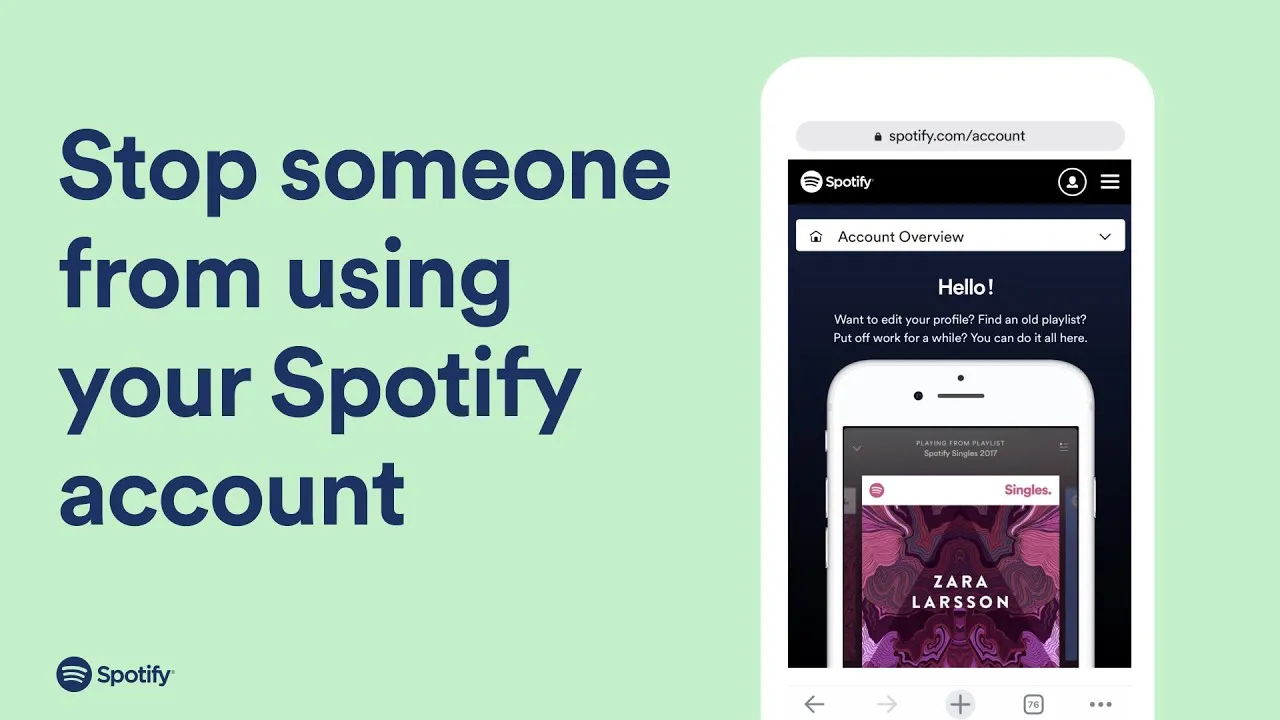
- On spotify.com > Account, review your plan, linked services, and apps.
If you regularly see unknown devices or locations, assume your account is compromised.
When to assume a breach and act immediately
Don’t wait to “see if it happens again.” Act right away if:
- You see repeated strange activity.
- Your playback keeps switching to an unknown device.
- You get password or email change notifications you didn’t request.
Move directly to the recovery steps below.
Immediate Steps to Take If Your Spotify Account Is Compromised
Follow following steps accorfingly to make sure you spotify account safe
Step 1 – Change your Spotify password (if you still have access)
If you can still log in:
- Go to spotify.com in a browser and log in.
- Click your profile > Account.
- Go to Change Password.
- Set a new, strong, unique password you’ve never used anywhere else.
If you log in through Google, Apple, or Facebook, change the password on that service instead.
Step 2 – Sign out of all devices (“Sign out everywhere”)
Still in your Account page on spotify.com:
- Scroll down to Sign out everywhere.
- Click it to force logout on all devices.
This kicks out anyone who might be using your account.
Step 3 – Revoke access to third‑party apps
Revoking unnecessary or suspicious apps is critical.
- On spotify.com, go to Account > Apps.
- Review all apps with access to your account.
- Click Remove Access for any app you don’t recognize or don’t use.
This stops external services from controlling your Spotify or reading your data.
Step 4 – Secure your email and social logins
Comment
byu/spotihack from discussion
inspotify
Your Spotify is often linked to:
- Your email (for password resets)
- Google, Apple, or Facebook (for login)
Do this immediately:
- Change your email password to something strong and unique.
- Turn on two‑factor authentication (2FA) for your email and any social account you use to log into Spotify.
If attackers control your email, they can undo all your Spotify fixes.
Step 5 – If you’re locked out, contact Spotify Support
If someone has already changed your:
- Email address, and
- Password,
you might not be able to log in at all.
In that case:
- Go to the Spotify Support page in a browser.
- Scroll to Contact Spotify.
- Look for: “I think my account has been taken over and I can’t access my account” or a similar option.
- Follow the prompts to contact support directly.
Be ready to provide:
- The original email address on the account
- Payment details (last 4 digits, type of card, PayPal, etc.)
- Recent playlists or subscription info
Spotify can help you regain control if you can prove ownership.
Enable 2 factor Authentication in Spotify
How to create a strong, unique password for Spotify
Good passwords are:
- Long – at least 12–16 characters
- Random – not based on words, birthdays, or names
- Unique – not reused anywhere else
Bad examples:
Spotify123Password!YourName1995
Good example (generated by a password manager):
S9!vL8t#2hF@0zP3
Never reuse passwords—here’s why
Reusing passwords is the single biggest risk to your Spotify account.
- When any one site gets breached, your email + password combo often ends up online.
- Attackers try that same combo on Spotify, Netflix, Gmail, banks, etc.
Using a different password for every service limits damage to just one site.
Use password managers to handle strong passwords
Remembering dozens of unique passwords is impossible without help. Password managers do it for you.
Popular options include:
- LastPass
- 1Password
- Bitwarden
- Dashlane
They can:
- Generate long, random passwords.
- Store them securely.
- Autofill them on your devices.
Set one very strong master password for your manager, and enable 2FA on it.
About two‑factor authentication (2FA) and Spotify
As of now:
- Spotify does not offer 2FA for regular listeners.
- Artists using Spotify for Artists have more advanced login protections.
What you can do instead:
- If you use Google, Apple, or Facebook to log in, enable 2FA on those accounts.
- Protect your email account with a strong password and 2FA, since password reset links go there.
This creates an extra security layer around your Spotify login.
Securing Third‑Party Apps and Connected Services
Connecting your Spotify account to external services—like smart speakers, fitness trackers, or music analysis tools—can significantly enhance your listening experience. However, every time you “Link” or “Authorize” a new app, you are granting it specific permissions to interact with your data. While these permissions are necessary for trusted services to function, they can be weaponized by malicious apps to track your behavior or manipulate your account without your knowledge.
What third-party apps can do with your Spotify access:
- Access Your Library & Playlists: They can read your saved songs, see your private playlists, and even view who you follow.
- Track Your Listening History: Some apps monitor what you’re playing in real-time to build a profile of your musical tastes or activity patterns.
- Control Your Playback: Authorized apps often have the power to play, pause, skip tracks, and adjust the volume on any of your active devices.
- Modify Your Data: This includes the ability to add or remove songs from your library and create or delete playlists on your behalf.
The Golden Rule: This level of access is perfectly normal for trusted names like Alexa, Sonos, or Last.fm. However, it is highly dangerous for “shady” third-party tools—especially those promising “Free Premium” or “Ad-Blocking”—as they may use these permissions to sell your data or use your account for streaming fraud.
How to review and remove app permissions
To audit your apps:
- Visit spotify.com and log in.
- Go to Account > Apps.
- Review the list carefully.
- Remove anything you don’t recognize, don’t use, or don’t fully trust.
Do this regularly—old or forgotten apps can become security holes over time.
Apps to avoid
Be very cautious with:
- Apps or sites that promise “free Premium forever” or “lifetime accounts.”
- Tools that ask for your Spotify password directly (legit apps use Spotify’s official login page).
- Unofficial “boost playlist followers” or “get streams fast” services.
Many of these exist only to steal your login or abuse your account.
Protecting Your Privacy Inside Spotify
Even if your account is secure, you might not want your listening habits visible to everyone.
Public vs private on Spotify: what’s visible by default
By default, people can often see:
- Your public playlists
- Your profile and display name
- Your recently played artists (depending on settings)
- Your listening activity for friends/followers
You can control most of this.
How to use Private Session (and when you should)
A Private Session hides what you’re listening to from:
- Friends in the “Friend Activity” feed
- Some aspects of your public listening history
To start a Private Session:
- Go to Settings in the Spotify app.
- Look for Social (or similar).
- Turn on Private Session.
Use this when:
- You don’t want others to see what you’re listening to right now.
- You’re on a shared device and want some privacy.
Note: Private Session usually ends after a period of inactivity or when you log out.
How to make playlists private or secret
If you don’t want others to see a playlist:
- Open the playlist.
- Click or tap the three dots (…).
- Choose Make Private or Make Secret (wording may vary by platform).
You can also:
- Turn off “Automatically make new playlists public” in Settings, if available.
How to hide your listening activity and recently played artists
In Settings > Social, look for options like:
- Share my listening activity on Spotify
- Show my recently played artists
Turn these off to reduce what others can see about your usage.
Managing followers and blocking unwanted users
If someone is bothering you:
- Go to their profile.
- Use the Block option (if available in your region/app version).
You can also:
- Remove followers by blocking/unblocking them.
- Limit what they can see by using private playlists and private sessions.
Controlling social sharing
If your Spotify is connected to social platforms:
- Review connections in Spotify Settings and on the social platforms themselves.
- Turn off automatic sharing (e.g., “Share to Facebook”) if you don’t want your listening public.
Device & Network Security: The Foundation of a Safe Spotify Account
Your Spotify security is only as strong as the device you use to access it. Maintaining the foundation of your digital security starts with keeping your hardware and software current. Since updates often fix critical security holes that hackers exploit, staying up to date is your first line of defense against unauthorized access.
To keep your account safe, make sure to:
- Keep your operating systems current: Regularly update the OS on your phone, tablet, and computer to ensure you have the latest security patches.
- Update the Spotify app regularly: Developers frequently release updates specifically designed to close vulnerabilities and improve account safety.
- Maintain other critical software: Always update your web browser and other essential apps, as these can often be used as entry points for cyberattacks.
Only install Spotify from official sources
Always:
- Use the App Store (iOS), Google Play Store (Android), or your OS’s official store.
- Download the desktop app from spotify.com only.
Avoid:
- APK files from random websites
- Modified or tampered Spotify apps
Risks of jailbroken or rooted devices
Jailbreaking/rooting removes many built‑in protections:
- Malicious apps can get deeper access.
- System updates may not work as intended.
If you use a rooted or jailbroken device, be extra cautious about what you install.
Use antivirus and safe browsing habits
On computers (and sometimes Android):
- Use reputable antivirus/anti‑malware tools.
- Don’t click random pop‑ups claiming your device is infected.
- Avoid downloading pirated content or unknown software.
Using Spotify safely on public or shared devices
When using Spotify on a shared computer, console, or smart TV:
- Always log out when you’re done.
- Don’t save your password on someone else’s device.
- Use “Sign out everywhere” from your Account page if you forgot to log out somewhere.
VPNs and secure Wi‑Fi
On public Wi‑Fi:
- Avoid logging in to important accounts if the network looks suspicious.
- A VPN can add encryption, but only if you trust the VPN provider.
How to Keep Your Spotify Account Safe
Use a strong password, enable 2FA, and log out of unknown devices.
how to log out of all devices on spotify mobile
Go to Account → Sign out everywhere from a browser.
how to change spotify password
Visit Spotify Account → Change password and save changes.
how to keep your spotify private
Enable Private Session and limit social sharing.
how to keep spotify playing on lock screen
Disable battery optimization for Spotify in phone settings

I’m martably passionate music enthusiast and researcher behind all the content you find here at spotifyapk.
As the site’s owner and publisher, my mission is simple: to provide clear, informative, and useful guides on the ever-evolving world of digital music platforms. Follow the journey and connect on Instagram: @martably! This site is dedicated to informational purposes, fueled purely by a love for music.