
Stop the Spotify application from automatically opening when your Windows 11 PC starts up. This can help improve your computer’s boot speed and overall performance.
You have two easy ways to manage startup applications: using the Task Manager or the Windows Settings app.
Method 1: Using Task Manager (Quick Access)
The Task Manager provides the quickest way to disable any application from launching at startup.
- Right-Click Start Menu: Right-click on your Start menu icon (the Windows logo) located in the taskbar.
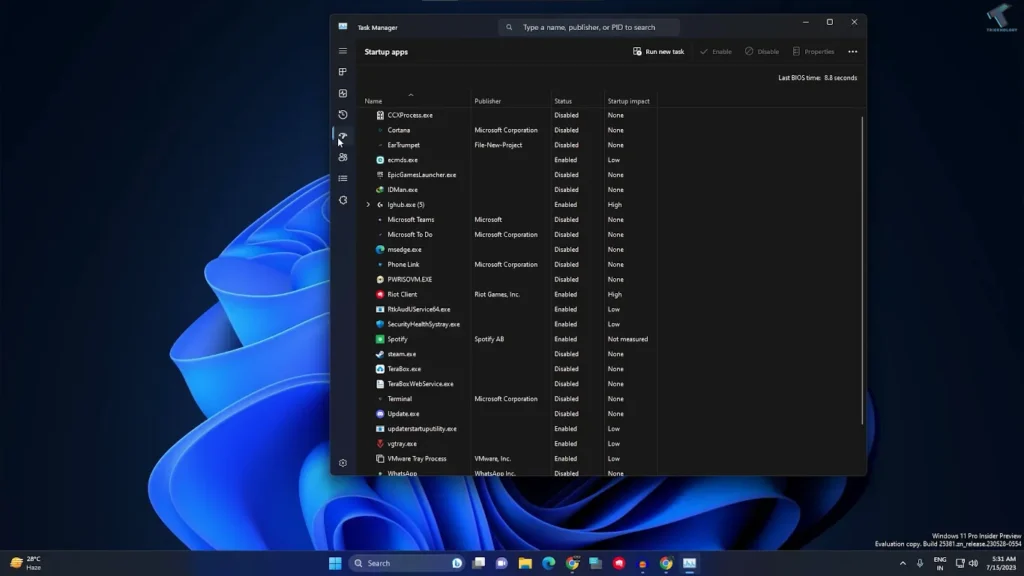
- Open Task Manager: Click on Task Manager from the list that appears.
- Navigate to Startup Apps: On the left side of the Task Manager window, you will see several options. Click on the one labeled Startup apps.
- Find Spotify: Locate the Spotify application in the list.
- Disable Startup:
- Right-click on Spotify.
- Click on Disabled.
The application will no longer launch automatically when you boot your PC.
Method 2: Using the Settings Window (Alternative Method)
You can also manage your startup programs directly through the Windows Settings menu.
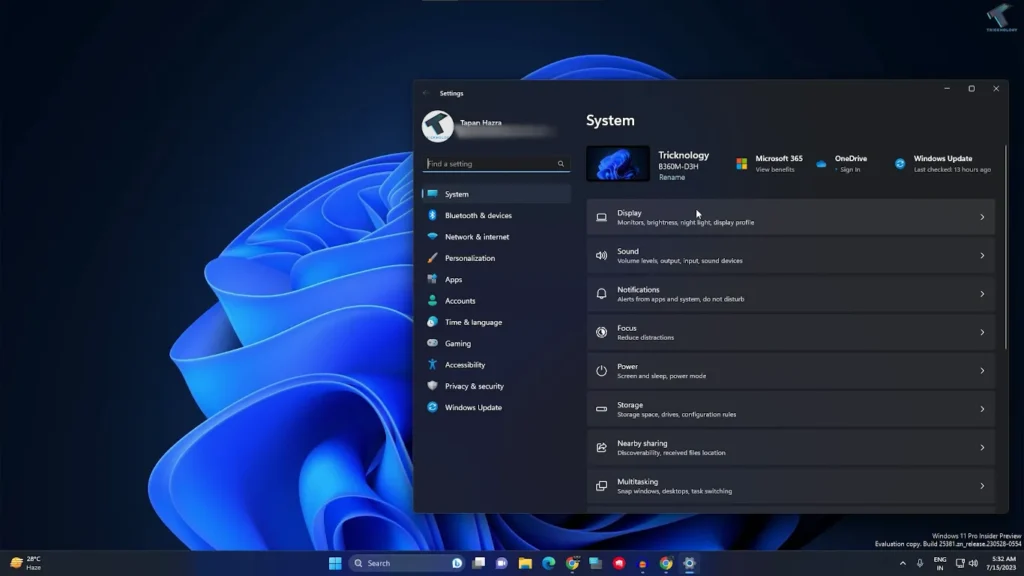
- Open Settings: Right-click on your Start menu icon and click on Settings.
- Go to Apps: In the Settings window, look on the left-hand side and click on Apps.
- Find Startup: On the right-hand side of the Apps menu, click on the option labeled Startup.
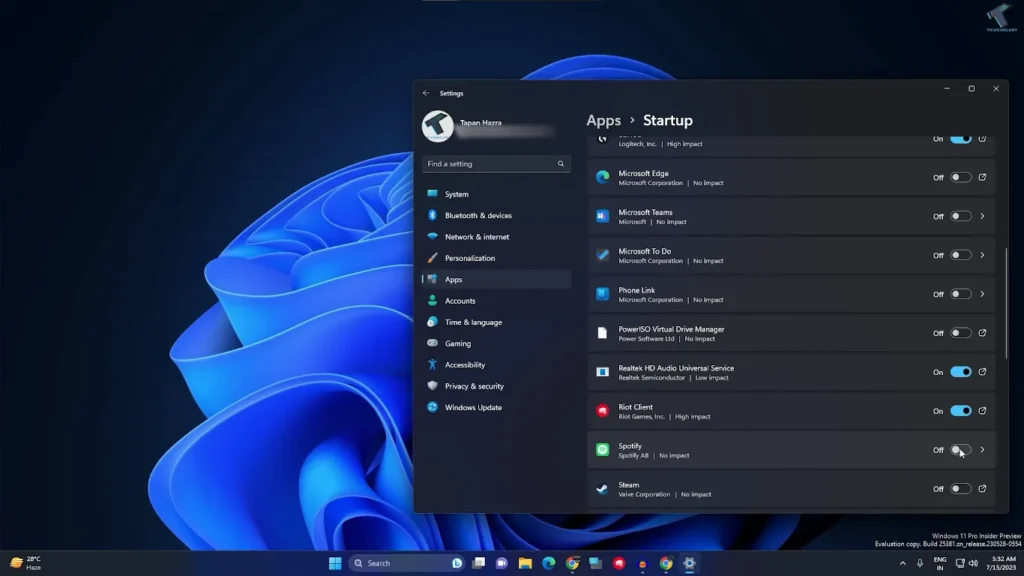
- Locate and Disable Spotify:
- Scroll down through the list of applications until you find Spotify.
- Click the toggle switch next to Spotify to turn it Off (Disabled).
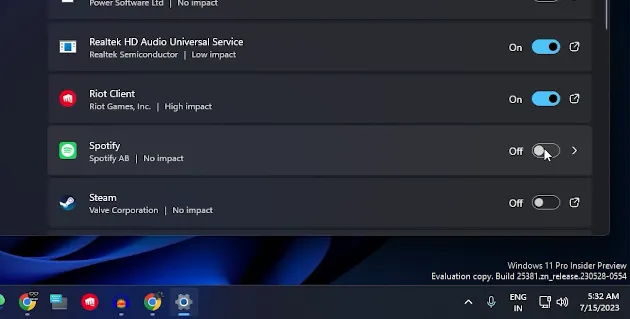
After disabling the app using either method, you are done! Spotify will now only open when you manually launch it.
How to stop Spotify from opening on startup on Mac?
Go to System Settings > Login Items and remove Spotify from your startup apps.
How to stop Spotify from opening on startup on Windows 11?
Open Task Manager > Startup tab and disable Spotify from the list.
How to stop Spotify from starting automatically on Android?
Turn off “Auto-start” in App Info > Battery/Background settings for Spotify.
How to stop Spotify from starting automatically in my car?
Turn off “Car Mode” or “Allow Auto Launch” inside Spotify’s settings.