How to Fix Spotify Lyrics Not Working (iOS, Android, PC & TV) – 2025 Guide
If your Spotify lyrics are not showing, not loading, or randomly disappearing, you’re not alone. This is one of the most common Spotify problems in 2025—but in most cases, it’s very easy to fix.
In this guide, I’ll walk you through:
- Why Spotify lyrics might not show up at all
- How lyrics are supposed to work on every device
- Step‑by‑step fixes for iPhone, Android, PC, Mac and Smart TVs
- What to do if lyrics fail only on specific songs
- Alternative ways to see lyrics when Spotify doesn’t cooperate
Follow the steps in order and don’t skip around—most people can fix their lyrics in just a few minutes.
Why Spotify Lyrics Are Not Showing
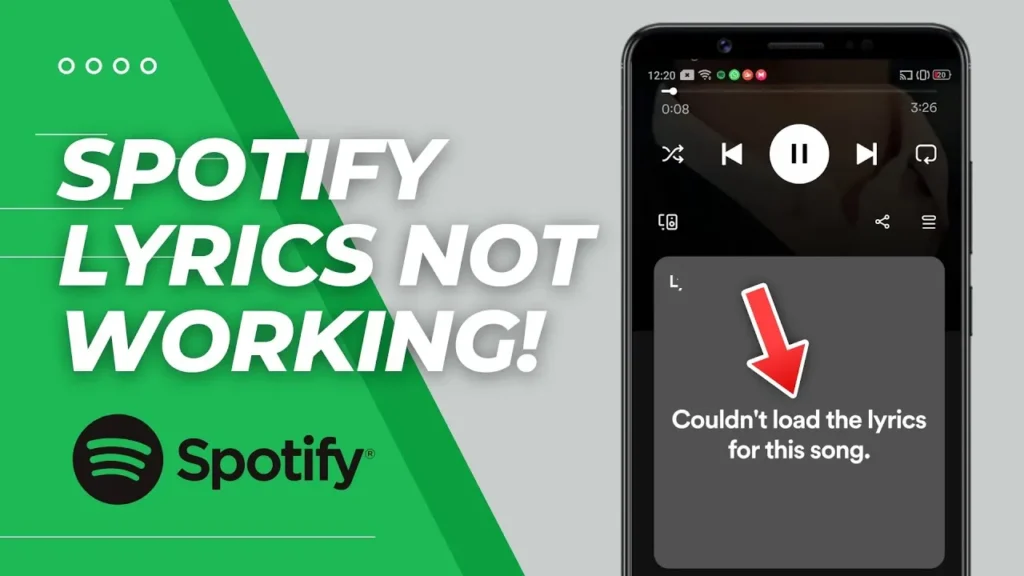
Before we start tapping and deleting things, it helps to understand what’s actually going wrong. Your lyrics might be missing because of:
1. Lyrics Not Available for That Song
Sometimes there is no problem with your app at all:
- The artist (or their distributor) simply hasn’t provided lyrics.
- Instrumentals, remixes, very new releases, or obscure tracks may have no synced lyrics yet.
If lyrics work fine for other songs but not for one track, it’s most likely this.
2. Region Restrictions or Licensing Issues
Lyrics are not licensed exactly the same way in every country.
- Some songs have lyrics in one region but not another.
- If your account country and your current IP/location don’t match (for example, if you’re using a VPN), lyrics may not appear.
3. Temporary Spotify Server Issues
Sometimes the problem is on Spotify’s side:
- Lyrics can disappear temporarily while Spotify or its lyrics partner has an issue.
- These usually fix themselves in a few hours.
4. App Cache or Outdated Version
Old or corrupted files can break lyrics:
- Outdated Spotify app
- Corrupted cache or local data
- Incomplete app update
5. Weak or Unstable Internet Connection
If your connection is slow, dropping, or switching between Wi‑Fi and mobile data:
- The song may load, but the lyrics don’t fully sync.
- You may see an empty lyrics screen or “Lyrics not available”.
6. Account Sync Problems
Your Spotify account might have trouble syncing:
- Logged in on too many devices at once
- Old sessions that never properly logged out
- Small sync bugs between mobile, desktop, and web
7. Unsupported Device or Old OS
Lyrics do not work on:
- Some older smart TVs
- Very old Android or iOS versions
- Some outdated desktop operating systems
If your device is too old, you might not get the lyrics feature at all.
8. VPN Causing Wrong Region
Using a VPN can:
- Make Spotify think you’re in another country
- Cause region mismatch between account country and current IP
- Result: No lyrics for some or all tracks
9. Offline Mode Enabled
If you:
- Turned on Offline Mode and
- Didn’t download that song/playlist properly
…then lyrics may not load, especially for newly added tracks.
How Spotify Lyrics Actually Work
Where Spotify Gets Its Lyrics
Spotify doesn’t manually type every lyric themselves. Instead, they:
- Work with lyrics partners (such as Musixmatch in most regions)
- Pull synced (karaoke‑style) lyrics directly into the app as you play
If their partner doesn’t have lyrics for a specific song OR hasn’t synced them yet, you’ll see no lyrics inside Spotify.
Why Some Songs Never Show Lyrics
Some tracks simply never get lyrics because:
- The artist didn’t provide them or refused licensing
- There are legal/rights issues for that track
- The track is a remix, edit, or unofficial version
- It’s an instrumental or has very minimal vocals
If you checked on multiple devices and other people also see no lyrics for the same song, this is likely the reason.
How to See Lyrics on Spotify (All Devices)
Before saying “lyrics are broken,” first make sure you’re looking in the right place.
A) Viewing Lyrics on Android & iPhone
- Open Spotify.
- Play any song.
- Tap the Now Playing bar at the bottom to open the full player.
- Swipe up from the bottom (or tap the Lyrics area if it’s visible).
If lyrics are available, you’ll see them appear and scroll in sync with the music.
B) Viewing Lyrics on Windows & Mac (Desktop App)
- Open the Spotify desktop app.
- Play a song.
- Look at the bottom right corner of the window.
- Click the Lyrics / microphone icon (or button labeled “Lyrics”).
The lyrics panel will open, and the current line will be highlighted as the song plays.
C) Viewing Lyrics on Spotify Web Player
If you’re using Spotify in your browser:
- Go to open.spotify.com and log in.
- Play a song.
- At the bottom right, find the mic / lyrics icon.
- Click it once to open the lyrics.
If you hover over it and see “Lyrics”, but nothing appears after you click, jump to the fixes section below.
D) Viewing Lyrics on Smart TVs
On most modern Smart TVs:
- Open the Spotify app on your TV.
- Play a song.
- Look for a Lyrics or mic icon on the Now Playing screen.
- Use your remote to select it.
Note: some older TVs or certain brands don’t support lyrics yet, even if your phone does.
How To Fix Spotify Lyrics Not Showing (2025 Updated)
Now let’s go through the actual fixes. Start from the top and move down until your lyrics are back.
1. Play Another Song
First, check if the issue is song‑specific:
- Play 5–10 different popular tracks (big artists, recent hits).
- Try both English and non‑English songs.
- If lyrics show for other songs → it’s a song issue, not your app.
- If lyrics don’t show for any song → continue below.
2. Check Your Internet Connection
- If you’re on Wi‑Fi:
- Turn Wi‑Fi OFF, turn Mobile Data ON.
- Open Spotify and test lyrics again.
- If you’re on mobile data:
- Connect to a reliable Wi‑Fi network and try again.
If the lyrics only fail on one type of network, you might have:
- A router issue
- Aggressive firewall or DNS settings
- Weak mobile data in your area
3. Restart the Spotify App
A quick restart can fix minor glitches.
- On Android & iPhone:
- Close Spotify from the recent apps screen.
- Wait 5–10 seconds, then reopen it.
- On Windows & Mac:
- Close Spotify completely (including from the tray/menu bar).
- Wait a moment and reopen.
Test lyrics again.
4. Update Spotify to the Latest Version
Outdated apps often break lyrics and other new features.
On Android
- Open Google Play Store.
- Search Spotify.
- If you see Update, tap it.
- After updating, reopen Spotify and test lyrics.
On iPhone
- Open the App Store.
- Go to your profile icon > Updates (or search Spotify).
- Tap Update if available.
On Windows/Mac
- Download the latest version from the official Spotify website or use your system’s app store (Microsoft Store, Mac App Store).
5. Log Out from All Devices
If your account is confused by old sessions, this can help.
- Go to spotify.com in a browser and log in.
- Go to Account > Sign out everywhere.
- Sign back in on your main device first.
- Open a song and check lyrics.
6. Clear Spotify App Cache
On Android
- Open Settings.
- Go to Apps (or Apps & notifications).
- Find and tap Spotify.
- Tap Storage & cache (or Storage).
- Tap Clear cache.
Also, you can clear it inside Spotify:
- Open Spotify > Settings > Storage > Clear cache.
On iPhone
Clearing cache is mostly handled internally, but you can:
- Open Spotify > Settings > Storage.
- Tap Delete cache (if available).
Reopen Spotify and test lyrics.
7. Disable VPN or Change Region
If you use a VPN:
- Turn the VPN OFF.
- Completely close and reopen Spotify.
- Try loading lyrics again.
If lyrics reappear:
- Your VPN IP location likely didn’t match your account’s registered country, which can block certain features.
8. Check Spotify Server Status
If nothing works so far, Spotify itself might be the problem.
- Visit a site like Downdetector and search for “Spotify”.
- Check @SpotifyStatus on X (Twitter) for official outage info.
If many people are reporting issues, it’s likely a temporary server problem. In that case, waiting is often the only option.
9. Turn Off Offline Mode
If you’re in Offline Mode, some lyrics might not load correctly.
- Open Spotify.
- Go to Settings.
- Look for Offline mode.
- Turn it OFF.
- Reconnect to the internet and check lyrics.
10. Reinstall Spotify (Clean Install)
If corrupted app files are the cause, a full reinstall is usually the final fix.
On iPhone
- Press and hold the Spotify icon.
- Tap Remove App > Delete App > Delete.
- Open the App Store, search Spotify, and reinstall.
- Log in and check lyrics.
On Android
- Long‑press the Spotify icon.
- Tap App info (ⓘ).
- Tap Uninstall and confirm.
- Open Google Play Store, search Spotify, and install again.
- Log in and test lyrics.
11. Check Device Compatibility
- Make sure your OS version is reasonably up to date:
- Android 8.0+
- iOS 13+ (ideally newer)
- On Smart TVs, some older apps don’t support lyrics at all. Check if:
- The TV’s firmware is updated
- Spotify is updated from the TV’s app store
12. Sync Time & Date Settings
Wrong time or time zone can break secure connections and streaming features.
- On Android/iPhone:
- Go to Settings > General / System > Date & Time.
- Turn on Set automatically for both time and time zone.
- On Windows/Mac:
- Enable automatic date & time in system settings.
Restart your device and test Spotify again.
Device‑Specific Fixes
Fixes for Android & iPhone
- Android:
- Long‑press Spotify > App info > Storage & cache
- Tap Clear cache, then Clear storage / Clear data (this logs you out)
- Reopen Spotify, log in, and test lyrics
- iPhone:
- Go to Settings > General > iPhone Storage > Spotify
- Tap Offload App, then Reinstall App
- Or delete and reinstall from the App Store
Fixes for Windows & macOS
- Log out and back in
- Turn off any VPN or proxy
- Try disabling hardware acceleration:
- In Spotify: Settings > Show Advanced Settings > Hardware Acceleration (toggle off, restart app)
- If nothing helps, uninstall Spotify and reinstall the latest version from the official website.
Fixes for Smart TVs
- Update the Spotify app via the TV’s app store
- Update the TV firmware
- Log out of Spotify on the TV, then log in again
- If your TV is quite old, check Spotify’s help pages—some older TV apps no longer receive feature updates, including lyrics
When Lyrics Don’t Work for Specific Songs Only
If:
- Lyrics work perfectly for most songs
- But one or a few tracks show no lyrics at all
Then it’s almost always one of these reasons:
- Lyrics haven’t been added by the artist or label yet
- The song is a remix, live version, or alternate release without lyrics support
- Licensing or regional restrictions
- It’s an instrumental track
What You Can Do
- Try the same song by a different artist or album version.
- Check on another device or on the Web Player to confirm.
- If you want to help, you can:
- Use Musixmatch to suggest or sync lyrics (where supported)
- Report missing lyrics through Spotify’s community forums or support
But in many cases, you’ll just have to wait until lyrics are added—it’s not something you can fix on your side.
Alternative Ways to View Lyrics
When Spotify lyrics still don’t show or aren’t available for a song, you have a few options.
1. Musixmatch
- Install the Musixmatch app (Android/iOS).
- It can:
- Show synced lyrics for many songs
- Sometimes float on top of other apps (depending on permissions)
Note: Features vary by region and may require a Musixmatch account or subscription.
2. Genius Lyrics
- Go to genius.com or use the Genius app.
- Search for the song name + “lyrics”.
- You can run Spotify in the background and read lyrics from Genius manually.
3. Phone’s Built‑In Music Player (For Local Files)
If you have local MP3 files with embedded lyrics:
- Your phone’s default music player may be able to display them.
- This doesn’t help with Spotify streaming, but works for your own downloaded files.
Extra Tips for 2025
A few more things that can prevent problems long‑term:
- Avoid modded / cracked Spotify apps
- They can cause account issues, break features like lyrics, and even get your account flagged.
- Keep your device and app updated
- Old OS or apps are the number one cause of missing features.
- Don’t overload the app
- Thousands of playlists, tons of downloaded songs, and very low free storage can make Spotify slow and glitchy.
Real Example: How Someone Fixed Their Lyrics Issue
Here’s a quick real‑world style scenario:
A user on Android noticed no lyrics on any song, but lyrics worked fine on their laptop.
What they did:
- Switched from Wi‑Fi to mobile data → no change
- Long‑pressed Spotify > App info > Storage & cache → Cleared cache & data
- Updated Spotify from the Play Store
- Logged back into their account
After this, lyrics instantly started working again for all supported songs.
In most cases, a clean cache + update is exactly what fixes it.
Why do some songs have no lyrics at all?
Because the artist/label or lyrics provider hasn’t added them, or there are licensing restrictions. It’s not always a bug.
Do I need Spotify Premium for lyrics?
No. Lyrics are available for both Free and Premium users, though availability can vary by region and song.
Why do my lyrics randomly disappear?
Usually due to:
Temporary server issues
Network glitches
Bugs after an app update
Try restarting the app, checking your connection, and updating Spotify.
4. How do I fix lyrics on Spotify Web Player?
Refresh the page
Try another browser (Chrome/Edge/Firefox)
Disable VPN and browser extensions blocking scripts
Log out, then log back in
Check Spotify’s status if many people are reporting issues
Are lyrics available in all countries?
No. Some regions have limited lyrics support due to licensing. If your country doesn’t support lyrics yet, you won’t see them even if others do.

I’m martably passionate music enthusiast and researcher behind all the content you find here at spotifyapk.
As the site’s owner and publisher, my mission is simple: to provide clear, informative, and useful guides on the ever-evolving world of digital music platforms. Follow the journey and connect on Instagram: @martably! This site is dedicated to informational purposes, fueled purely by a love for music.