How to Use Spotify Beginner’s Guide 2025
Spotify is one of the most popular music-streaming services available today. Whether you’re new to music streaming or just starting with Spotify, this guide will walk you through everything in a clear and easy way.
Spotify works across almost every platform. You can use the desktop app on both Mac and Windows PCs, or you can simply open it in your web browser by visiting spotify.com. It also offers mobile apps for both iOS and Android, making it easy to listen to music wherever you are.
If you’ve never tried a music-streaming service before, think of Spotify as a huge digital library with tens of millions of songs ready for you to play anytime. You can search for songs, albums, and artists, or explore playlists made for different moods and activities.
Spotify is free to use, but it also has paid plans with extra benefits. With the free version, you need an internet connection because all music is streamed online—you can’t save songs to listen offline. With the premium (paid) option, you can download music and listen even when you’re offline, without any internet connection.
This guide covers everything you need to know to start using Spotify on any device and understand the difference between the free and paid options.
Spotify Premium on Mobile
Most people use Spotify on their phones, so let’s begin with the mobile app. At the end of this guide, we’ll also look at the desktop version, but don’t worry—your account syncs across all devices. Anything you do on the mobile app will automatically appear on the desktop app and web version.
Step 1: Download and Open the Spotify App
Step 2: Create Your Free Spotify Account
On the first screen, you’ll see the option to sign up for free.
You will need to:
After filling in the required information, tap Create to continue.
Step 3: Pick Your First Artists
The app will now help customize your experience. Spotify makes recommendations based on your music taste, so it asks you to:
- Choose at least three artists you like, or
- Use the search bar at the top to find artists manually
For example, you can search for The Beatles, select them, and continue choosing others until you’re ready.
Once you’re done selecting, tap Done.
Step 4: Welcome to Your Spotify Homepage
After setup, you’ll land on your main Home screen.
Here you’ll find:
- Recommended playlists
- Suggested artists
- Recently played tracks
- Mood- or genre-based sections
This is your starting point for exploring music, creating playlists, and discovering new songs.
Spotify Home Tab Overview
At the bottom of the Spotify mobile app, you’ll notice four main icons. Before we explore the others, let’s take a closer look at the Home tab, where most people begin their listening experience.
Featured Playlists on the Home Screen
When you open the Home tab, you’ll see various playlists at the top—such as the Top 50 US or Global Top 50.
If you choose one of these playlists, you can tap Shuffle Play to instantly start listening.
- Tapping Shuffle Play starts the playlist in a random order
- You can press Pause at any time
- When you tap the small bar that appears at the bottom, it expands into the full playback screen
- Many tracks also include short videos that play during the song
- You can skip, rewind, or pause right on the playback screen
Once you’re done exploring that screen, tap the down arrow to minimize and return to the Home page.
Recently Played Section
After returning to the Home tab, you’ll notice a Recently Played row at the top.
Everything you’ve listened to—songs, playlists, albums—will automatically appear here. This makes it easy to jump back into something you were listening to earlier.
Personalized Recommendations
As you scroll further, Spotify begins suggesting more content. These recommendations are based on your listening habits.
Since at the start you’ve only chosen a few artists, the recommendations may be simple—like multiple Beatles albums if you selected them earlier. But over time:
- Spotify’s algorithm learns your taste
- It recommends more accurate playlists
- It creates daily mixes based on your top artists
- Your home feed becomes increasingly personalized
For example, if you picked artists like Coldplay or The Beatles, Spotify will automatically build mixes based on their music.
Podcasts on the Home Tab
Spotify isn’t just for music.
You’ll also find a wide selection of podcasts, showcased right on the Home screen. These appear alongside music suggestions, giving you easy access to shows from every category.
Additional Sections
As you continue scrolling, you’ll see:
- Recommendations for Today (updated daily)
- Suggested Artists based on your initial picks
- Popular New Releases
- Popular Playlists
- Trending Content
All of this is constantly refreshed and tailored specifically to your listening habits.
The Home tab is designed to help you discover music and podcasts you’ll enjoy, and it becomes more refined the more you use Spotify.
Featured Playlists In Spotify
When you open the Home tab, you’ll notice several featured playlists—such as Top 50 US or Global Top 50—displayed right at the top.
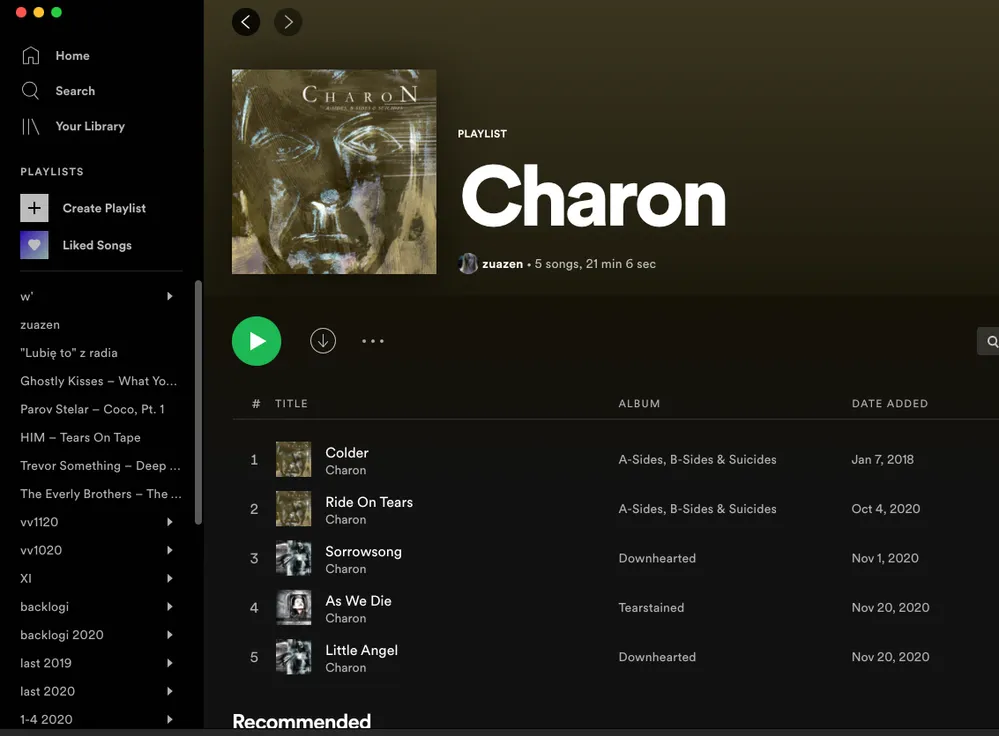
Photo Credit | Spotify
If you select any of these playlists, you can tap Shuffle Play to start listening immediately.
When you use Shuffle Play:
- The playlist begins in a random order
- You can press Pause whenever you like
- A small bar appears at the bottom of the screen while music plays
- Tapping that bar opens the full playback screen
- Some songs include short visual loops or videos that play during the track
- You can skip, rewind, or pause from within the playback screen
Once you’re done, tap the down arrow to shrink the player and return to the Home page.
Recently Played Section
Back on the Home tab, the first section you’ll see is Recently Played.
This area stores everything you’ve listened to—songs, playlists, albums, or podcasts. It’s a quick way to jump right back into your previous sessions without searching again.
Personalized Recommendations
As you scroll down, Spotify begins personalizing the content you see. These recommendations are based entirely on your listening activity.
At the very beginning, your feed might look simple—for example, showing multiple Beatles albums if you selected The Beatles during setup. But as you continue to listen:
- Spotify’s algorithm learns your music taste
- You begin receiving more accurate recommendations
- Spotify creates Daily Mixes based on your favorite artists
- Your entire home feed becomes highly personalized
So if you selected artists like Coldplay or The Beatles, Spotify will automatically generate playlists and mixes inspired by their style.
Podcasts on the Home Tab
Spotify isn’t limited to music.
You’ll also find a large collection of podcasts displayed throughout the Home tab. These are mixed in with your music recommendations so you can easily explore shows from all kinds of categories.
More Sections You’ll Find While Scrolling
As you continue browsing, Spotify may show sections like:
- Recommendations for Today (updated daily)
- Suggested Artists based on your initial preferences
- Popular New Releases
- Popular Playlists
- Trending Content
Every part of this feed updates regularly and adjusts based on what you listen to.
A Smarter Home Tab Over Time
The Home tab is built to help you find music and podcasts you’ll love. The more you use Spotify, the more precise and personalized this page becomes—turning it into a perfect reflection of your taste.
Playing a Song and Managing Your Queue
Now let’s take a closer look at what happens when you open an individual song. When a track is already playing, you can tap the small bar at the bottom to open the full Now Playing screen.
Once you’re inside this page, you’ll see either the album cover or, in many cases, a short music video or animated visual playing in the background.
Here’s what you can do on this screen:
- Play or Pause the track using the main button
- Skip forward or go back to other songs in the playlist
- Mark a song as a favorite by tapping the heart icon — this saves it to your Liked Songs playlist
- Tap the three-dot menu at the top to:
- Add the song to a playlist
- Add it to your Queue, so it plays next
- Share the track with someone else
If you choose Go to Queue, you’ll see a list of every song scheduled to play next. Anything you add to your queue appears here, and Spotify will play it in that order.
You can close the menu by tapping the X.
There is also an option to loop the song, allowing it to repeat continuously. You can turn looping on or off using the loop icon on the playback screen.
One option you won’t see in the free version is the Download button.
Downloading songs for offline listening is only available to Premium subscribers, which means free users must stay connected to the internet to stream music.
Premium Plans and What They Offer
Spotify includes a dedicated Premium section where you can explore all paid options.
Here you’ll find different plans, including:
- Individual
- Student
- Family
This section explains the benefits of upgrading, such as offline listening, ad-free playback, and unlimited skips.
Useful Settings You Should Know
To access Spotify’s main settings, tap the gear icon at the top of the Home screen. There are a few helpful options here worth checking out:
1. Explicit Content Control
If you’re listening with kids in the car—or simply prefer clean content—you can turn Explicit Content on or off.
This setting filters out tracks marked as explicit.
2. Playback Options
Under the Playback section, you’ll find tools to improve your listening experience. One especially useful feature is:
- Crossfade:
This lets one song smoothly fade into the next.
For parties or continuous playlists, you can set a 2–3 second fade so there’s no silence between tracks.
Below that, Spotify includes additional advanced playback settings you can adjust based on your preferences.
Using Spotify on the Web Player and Desktop
Spotify isn’t limited to mobile devices—you can also use it directly on a Mac, Windows PC, or any browser. To get started, simply go to spotify.com and sign in with the same account you created on your phone. If you don’t have an account yet, you can create one right on the website.
Once you’re signed in, look for the option to launch the Web Player. This opens Spotify in your browser and syncs instantly with your mobile account, so everything you’ve played, saved, or created appears here as well.
The layout closely resembles the mobile app:
- The Home section shows your recently played items and personalized recommendations
- The Search tab lets you explore music, playlists, artists, and podcasts
- The Your Library section contains your playlists, liked songs, and saved albums
For example, if you created a “Road Trip” playlist on your phone, it will appear automatically in your web player. And if you create a new playlist on the desktop version, it will sync back to your mobile device as well.
At the top of the web player, you’ll also find organized options to browse playlists, podcasts, artists, and albums—making it easy to navigate.
To play any song, simply:
- Select the track
- Click Play
Playback controls appear at the bottom of the screen, including:
- Skip forward
- Go back
- Like (heart) the song
- Loop
- Shuffle
The interface gives you the same essential controls you’re used to on mobile.
You can also install the desktop app through a button on the website. This downloads Spotify for Mac or Windows.
Using the Spotify Desktop App
The full desktop app looks slightly different from the web version, but it offers the same core features along with some additional tools.
You still have:
- Home, showing personalized recommendations
- Browse, similar to the search section on mobile
- Your Library, where your playlists, liked songs, albums, and recently played tracks appear
However, the desktop app includes a feature you don’t get on some other versions: the Radio tab.
With Spotify Radio, you can:
- Listen to playlists automatically generated like radio stations
- Skip tracks (with skip limits on free accounts)
- Play themed “stations” based on genres, moods, playlists, or artists
Just select any radio station, press Play, and the music starts immediately.
Your playlists are displayed along the left side, and you can create a new playlist at any time by clicking New Playlist.
I hope you found Spotify useful. Let me know in the comments below what you think of it. And please give this video a thumbs up if you found it useful. Thanks so much for watching and I’ll see you next

I’m martably passionate music enthusiast and researcher behind all the content you find here at spotifyapk.
As the site’s owner and publisher, my mission is simple: to provide clear, informative, and useful guides on the ever-evolving world of digital music platforms. Follow the journey and connect on Instagram: @martably! This site is dedicated to informational purposes, fueled purely by a love for music.